
Guide
How Glanceline works, in four steps.
1Write your script
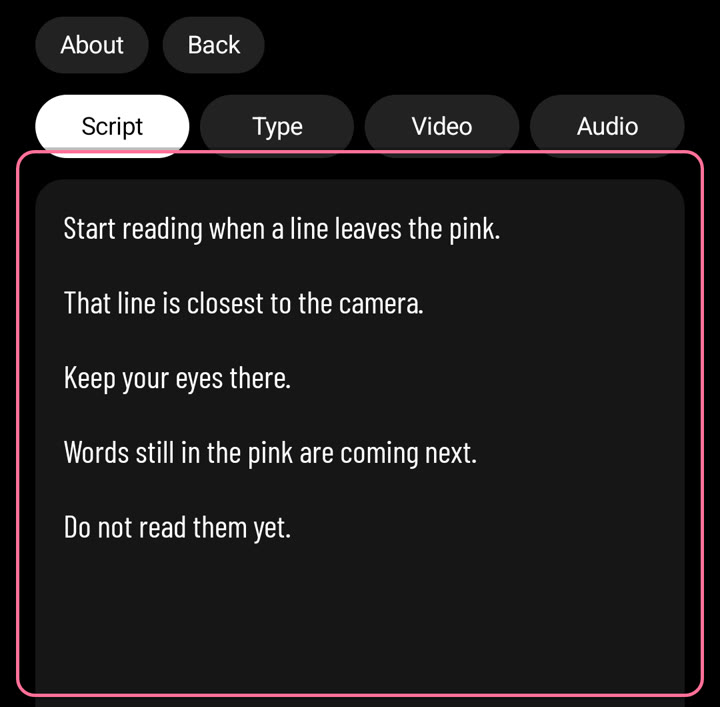
Open Settings › Script and write or paste your text. Every sentence gets its own line. Below the text you can switch the blank line between sentences on or off. When you leave the Script tab, the lines are laid out for you.
2Read at the line
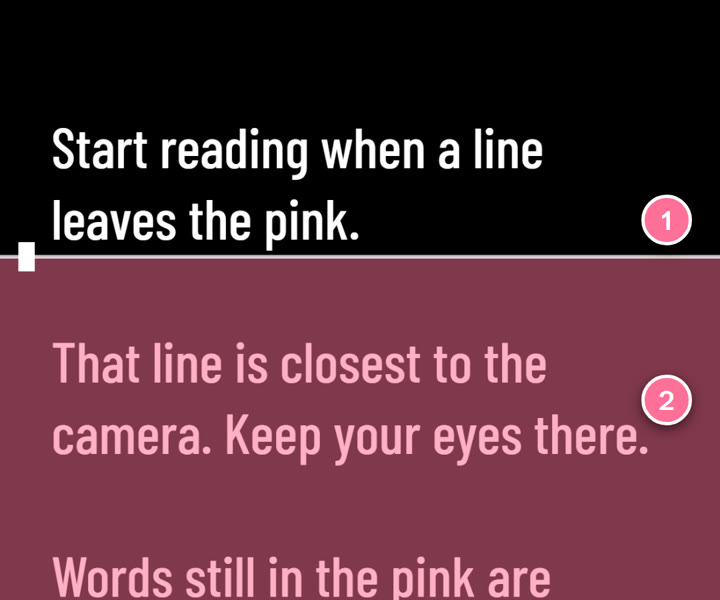
- Read the line that has just left the pink, above the white marker. It is the line closest to the camera, so your eyes stay near the lens.
- Lines still in the pink are coming next.
Tap the script to pause or play. Drag it to go back or forward.
3Set the pace

- Reset brings the script back to the start.
- − and + make it slower or faster, in lines per minute.
- The arrows choose whether the script scrolls up or down.
4Record
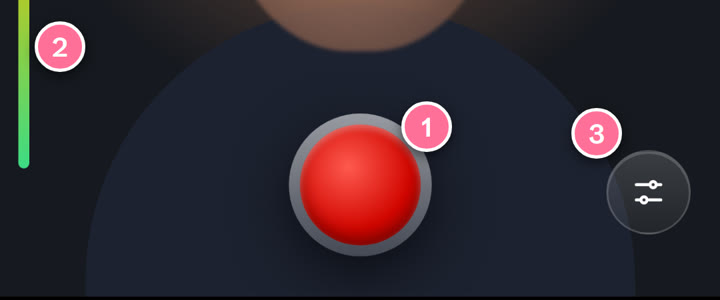
- Tap the red button. “Get ready” counts down 3, 2, 1, then the script starts and Glanceline records. Tap again to stop. The video is saved in your gallery, in Movies/Glanceline. You can change or switch off the countdown in Settings › Script.
- The bar on the left shows the sound level. Red means too loud.
- The sliders open Settings.
Tips
- Settings › Video: front or back camera, HD or 4K, frame rate and quality.
- Settings › Audio: pick a plugged-in or Bluetooth microphone. The hard limiter keeps loud peaks from distorting.
- Settings › Type: font, size, colour and margins. Mirror text is for teleprompter glass.
- Hold the phone at eye level. The script sits right under the camera, so you look almost straight into the lens.
- Turn the phone: with Settings › Video › Frame on Auto, Glanceline turns with you and the script moves to the side of the lens. Vertical and Horizontal stay locked. While you record, the screen never turns.
- Hands-free: in Settings › Remote, switch on Double clap or the volume button (a Bluetooth selfie remote works too) to start and stop without touching the screen.